You upload your video. It looks perfect on your laptop. Then a viewer watches it on their phone — and half the screen is black bars. Another viewer plays it on a big-screen TV, and the whole picture looks stretched, like everyone in the video gained 20 pounds overnight. Sound familiar?
That problem almost always comes down to one thing: the aspect ratio. Specifically, not knowing how to calculate it — or using the wrong one for the platform you are streaming on.
The Core Formula
Aspect Ratio = Width ÷ Height
That’s it. A 1920×1080 video gives you 1920 ÷ 1080 = 1.78, which is the same as 16:9 — the most widely used aspect ratio in video streaming today. Once you understand how this works, you will never again upload a video that looks wrong on a screen.
This guide breaks down everything you need to know about aspect ratio calculation — with real examples, a full reference table of common aspect ratios, and platform-by-platform guidance for streamers.
What Is Aspect Ratio?
Aspect ratio is the proportional relationship between the width and height of a video frame, image, or screen. It is written as two numbers separated by a colon — for example, 16:9 or 4:3. The first number is always the width. The second number is always the height.
So a 16:9 aspect ratio means the video is 16 units wide for every 9 units tall. Those “units” can be pixels, inches, or any other measurement — what matters is the proportion, not the actual size.
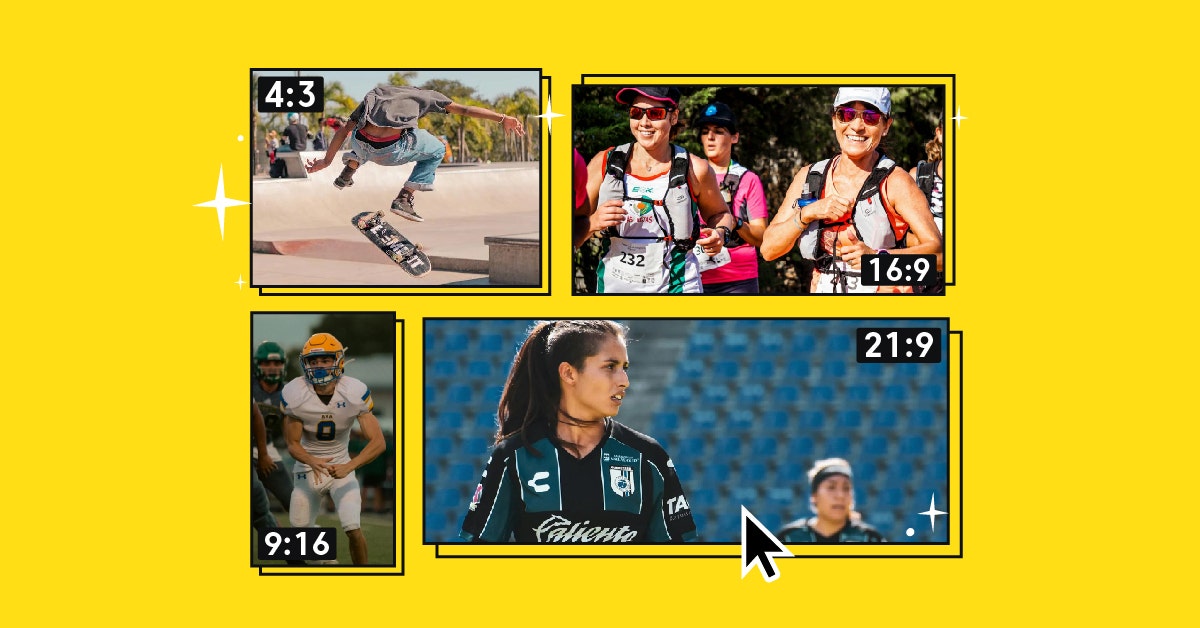
The 16:9 aspect ratio is the most commonly used and is recognized as a global format for films, television, mobile devices, camcorders, DSLRs, online streaming platforms, social media platforms, and more.
Why does this matter for video streamers? Because every platform — YouTube, Twitch, TikTok, Instagram — has its own preferred aspect ratio. Upload your video in the wrong ratio, and the platform either stretches it, crops it, or adds black bars (called letterboxing or pillarboxing) to fill the space.
The Aspect Ratio Formula
The core formula for calculating aspect ratio is Width ÷ Height. You can also express the result as a clean ratio by dividing both numbers by their Greatest Common Divisor (GCD) — the largest number that divides evenly into both width and height.
Step-by-step method:
- Write down your video’s width and height in pixels
- Find the GCD of both numbers
- Divide both width and height by the GCD
- Write the result as Width:Height
Example: Your video is 1280 × 720 pixels.
- GCD of 1280 and 720 = 80
- 1280 ÷ 80 = 16
- 720 ÷ 80 = 9
- Aspect ratio = 16:9
Another example: Your video is 1080 × 1080 pixels.
- GCD of 1080 and 1080 = 1080
- 1080 ÷ 1080 = 1
- 1080 ÷ 1080 = 1
- Aspect ratio = 1:1 (a perfect square — popular on Instagram)
How to Calculate a New Width or Height While Keeping the Same Ratio
Sometimes you already know the aspect ratio and just need to resize — maybe you want to scale a 1920×1080 video down while keeping it at 16:9 so it still looks correct. Here are the two formulas:
Sometimes you already know the aspect ratio and just need to resize. Maybe you want to scale a 1920×1080 video down to a smaller size — but keep it at 16:9 so it still looks correct.
Here is the formula:
New Height = (Original Height × New Width) ÷ Original Width
New Width = (Original Width × New Height) ÷ Original Height
Example: You have a 1920×1080 video and want to resize the width to 1280. What is the new height?
New Height = (1080 × 1280) ÷ 1920
New Height = 1,382,400 ÷ 1920
New Height = 720
So your new size is 1280×720 — and it is still 16:9. No stretching, no black bars.
This method is useful when:
- Resizing photos for a website or blog
- Creating video thumbnails at a specific size
- Exporting streams at different resolutions for different devices
- Preparing videos for website ads or social media posts
Most Common Aspect Ratios for Video Streaming
Here is a quick reference table of the most common aspect ratios you will encounter as a video streamer:
| Aspect Ratio | Pixel Example | Best For |
|---|---|---|
| 16:9 | 1920×1080 | YouTube, Twitch, Netflix, TV, most streaming platforms |
| 9:16 | 1080×1920 | TikTok, Instagram Reels, YouTube Shorts (vertical) |
| 1:1 | 1080×1080 | Instagram feed posts, Facebook posts |
| 4:3 | 1024×768 | Older TV content, retro streams, some webcams |
| 4:5 | 1080×1350 | Instagram vertical feed posts |
| 21:9 | 2560×1080 | Cinematic films, gaming monitors |
The most common aspect ratios for video content on the web are 16:9 for widescreen display, 1:1 for square display, and 9:16 for vertical display. The global video streaming market was estimated at USD 129.26 billion in 2024 and is projected to reach USD 416.8 billion by 2030 (Grand View Research). Getting your aspect ratio right is no longer optional — it is a basic requirement for looking professional.
Aspect Ratio vs. Resolution: What Is the Difference?
A lot of people mix these two up. Here is the short version:
- Aspect ratio = the shape of your video (wide, tall, square)
- Resolution = the detail in your video (how many pixels it has)
The same aspect ratio can exist at many different resolutions. For example, 16:9 includes:
- 1280×720 (720p HD)
- 1920×1080 (1080p Full HD)
- 3840×2160 (4K Ultra HD)
All three have the same shape. But the higher the resolution, the sharper the picture.
This also means you can change the resolution of your video without changing the aspect ratio — as long as you use the resize formula shown earlier.
⚠️
A common mistake is to resize a video by only changing one dimension (width or height). This breaks the ratio and leads to a stretched or squished picture. Always scale both dimensions proportionally.
How to Find the Aspect Ratio of a Video You Already Have
You do not always need to calculate aspect ratio from scratch. Here are three ways to find it:
What Happens When the Aspect Ratio Is Wrong?
When the aspect ratio of your video does not match the display screen or platform, three things can happen:
1. Black Bars (Letterboxing and Pillarboxing)
- Letterboxing: Black bars appear on the top and bottom of the screen. This happens when a wide video (like 21:9) plays on a 16:9 display.
- Pillarboxing: Black bars appear on the left and right sides. This happens when a narrow video (like 4:3) plays on a 16:9 display.
2. Stretching
The video is forced to fill the screen by stretching either the width or the height. This distorts everything in the frame.
3. Cropping
The platform cuts off the sides or top and bottom of the video to make it fit. This can remove important content from the frame — which is a big problem for videos with text, faces, or action at the edges.
When a 21:9 video is played on platforms that use the 16:9 aspect ratio, black bars may appear on the top and bottom of the video frame to maintain the original aspect ratio.
Platform-Specific Aspect Ratio Guide for Streamers
Different platforms want different ratios. Here is what you need to know:
Different platforms want different ratios. Here is what you need to know:
YouTube
- Standard videos: 16:9 (1920×1080 recommended)
- YouTube Shorts: 9:16 (1080×1920)
YouTube, Twitch, and Facebook Live all recommend 16:9 for optimal viewing, and these platforms are designed for widescreen displays. Netflix and other video-on-demand services also primarily use 16:9.
TikTok
- Full-screen vertical video: 9:16 (1080×1920)
- Landscape videos are also supported but perform better vertically
- Feed posts: 1:1 (square) or 4:5 (portrait)
- Stories and Reels: 9:16 (1080×1920)
- IGTV / longer videos: 16:9 or 4:5
Twitch
- Standard streams: 16:9 (1920×1080)
- Some retro gaming streams use 4:3, though 16:9 is the norm
Facebook Live
- Recommended: 16:9 for desktop viewers
- Mobile uploads: 9:16 works for stories
Landscape vs. Portrait: Which Should You Choose?
Landscape means the video is wider than it is tall — ratios like 16:9 or 21:9. This is the standard for TV, desktop monitors, and most streaming platforms. It matches how most people watch longer-form video content.
Portrait means the video is taller than it is wide — ratios like 9:16. This matches how people hold their phones. It is ideal for short-form content on TikTok, Reels, and YouTube Shorts.
👆
Simple rule: Think about where your audience watches your content and on what device. If most viewers are on mobile watching short clips, portrait works well. If you are streaming a live event, tutorial, or gaming session, landscape is the right call.
Aspect Ratio Tips for Live Streaming on Castr
When you stream with Castr, getting your aspect ratio right from the start saves a lot of headaches downstream. Here are a few practical tips:
▶
Set your OBS or encoder output to 1920×1080 — this gives you the standard 16:9 ratio that works on YouTube, Facebook, Twitch, and most platforms at once.
▶
Use the calculate formula before exporting — if you change the canvas size in your encoder, always verify the new dimensions maintain the same ratio.
▶
Preview your stream on multiple devices — what looks correct on your monitor may appear stretched on a TV or phone. Castr lets you preview your stream before going live.
▶
Avoid mixing ratios in the same stream — if you switch between a 16:9 camera feed and a 9:16 phone camera, you will get awkward black bars or cropping. Keep your sources consistent.
▶
Check your webcam resolution — many webcams output at 1280×720 or 1920×1080 by default (both 16:9). But some older webcams output at 4:3. If you notice black bars on the sides of your stream, this could be why.
Quick Reference: Aspect Ratio Calculation Examples
| Original Size | Calculation | Aspect Ratio |
|---|---|---|
| 1920 × 1080 | GCD = 120; 1920÷120=16, 1080÷120=9 | 16:9 |
| 1280 × 720 | GCD = 80; 1280÷80=16, 720÷80=9 | 16:9 |
| 1080 × 1080 | GCD = 1080; 1÷1=1, 1÷1=1 | 1:1 |
| 1080 × 1920 | GCD = 120; 1080÷120=9, 1920÷120=16 | 9:16 |
| 1024 × 768 | GCD = 256; 1024÷256=4, 768÷256=3 | 4:3 |
| 2560 × 1080 | GCD = 40; approx. 64:27 ≈ 21:9 | ~21:9 |
Conclusion: Calculate First, Stream Second
Every frame of video you stream has an aspect ratio — whether you calculated it or not. The difference is that when you calculate it intentionally, your video looks right on every screen. When you ignore it, you risk black bars, stretched faces, and cropped content that frustrates your viewers.
The formula is simple: Width ÷ Height. Use the GCD method to express it as a clean ratio. Match it to the platform you are streaming on. Scale it correctly when you resize.
If you are building a professional streaming setup or just starting out, Castr makes it easy to stream to multiple platforms at once — each with the correct settings for their preferred aspect ratio. From multistreaming to live encoding, Castr handles the technical heavy lifting so you can focus on creating great content.