
Most town hall meetings reach a fraction of the people they’re meant to serve. Government sessions draw thin crowds despite affecting every resident’s taxes, zoning, and services. Corporate all-hands meetings miss every remote employee who can’t be in the room. The people who most need to hear these discussions often can’t attend.
Castr is a cloud-based live streaming platform that lets you broadcast a town hall meeting to YouTube, Facebook, your own website, and 30+ other destinations simultaneously from a single video input. It records every stream automatically, hosts the replay as on-demand video, and includes security features for private or closed sessions. No broadcast experience or IT department required.
Let’s explore the process of setting up, streaming, and archiving a town hall meeting with Castr, step by step.
What You Need Before You Start
You need four things to live stream a town hall meeting: a camera, a microphone, an encoder, and an internet connection. You also need a Castr account, which you can create with a free 7-day trial.
A camera with 1080p resolution is the minimum. Webcams work for small conference rooms. A camcorder on a tripod covers mid-size venues. For large auditoriums or council chambers, a PTZ (pan-tilt-zoom) camera lets you follow speakers remotely without a camera operator.
An encoder converts your camera’s feed into a compressed stream. OBS Studio is the most popular free encoder. It runs on Windows, Mac, and Linux. Hardware encoders are better for permanent installations because they run without a laptop.
Your internet connection needs at least 10 Mbps of upload speed. Use a wired Ethernet connection whenever possible. Wi-Fi works but is vulnerable to interference from a room full of devices.
Camera and Audio for Indoor Meeting Rooms
Position your camera at the back of the room, centered on the podium or panel table. This angle captures the full stage without distracting the audience. Mount the camera at a height that clears seated attendees’ heads.
Audio quality determines whether remote viewers stay or leave. A lapel microphone on each speaker gives you the clearest sound. If multiple people share a podium, a cardioid condenser mic on a gooseneck stand captures the voice at the lectern while rejecting room noise.
For audience Q&A segments, a wireless handheld mic passed to questioners keeps remote viewers from missing the question entirely. Without it, they hear a faint voice and lose context.
Indoor lighting matters. Overhead fluorescents create harsh shadows on camera. A pair of LED panels pointed at the speakers from the front makes a noticeable difference in video quality, even with a basic webcam.
Internet and Encoding Settings
For 1080p at 30 fps, set your bitrate between 4,500 and 6,000 kbps. Town hall content is mostly talking heads and slides, so 30 fps is plenty. Higher frame rates waste bandwidth without improving the viewing experience for this type of content.
Use CBR (Constant Bitrate) for live streaming. It sends a steady data rate that prevents buffering when slides transition or a speaker moves. Set your keyframe interval to 2 seconds.
In OBS, go to Settings > Output, switch to Advanced mode, and enter your bitrate. Under Video, set the output resolution to 1920×1080. If your venue’s connection is unreliable, drop to 1280×720 at 3,000–4,500 kbps. A smooth 720p stream beats a stuttering 1080p one.
9 Steps to Set Up Your Town Hall Stream in Castr
Here’s how to go from zero to live in Castr.
Step-1: Create a Castr account. Click “Start Free Trial” and enter your email. The 7-day trial gives you access to all features with no credit card required.
Step-2: Create a new livestream project. From the Castr dashboard, click “Create” and select “All in One Stream.” Name the stream (e.g., “City Council Town Hall – June 2026”) and select the ingest server closest to your location.

Step-3: Copy your stream key and RTMP URL. Castr generates these automatically when you create a stream. You’ll find them in the stream dashboard under the ingest settings. Castr also supports SRT if your encoder and network benefit from error correction.
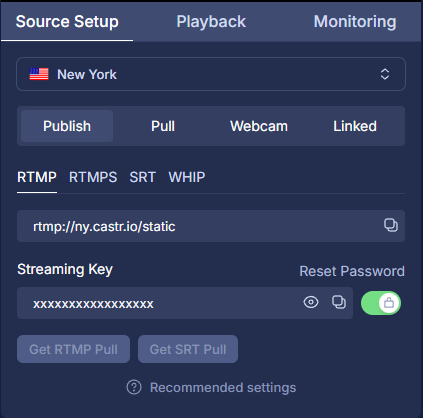
Step-4: Paste the stream key and RTMP URL into OBS. In OBS, go to File>Settings > Stream, select “Custom,” paste the Castr server URL into the Server field and the stream key into the Stream Key field. Click OK.

Step-5: Add your multistream destinations. In Castr’s stream dashboard, click “Add Platforms” and link YouTube, Facebook, and any other platform your audience uses. Toggle each destination on. Castr distributes your single input to all of them simultaneously.

Step-6: Embed the stream on your website. Castr provides an iframe embed code in the stream dashboard. Copy it and paste it into your municipal or company website’s meeting page. Viewers can watch directly on your site without visiting YouTube or Facebook.

Step-7: Add overlays and graphics. Use OBS scenes or Castr’s Cloud Production to add a title card, agenda display, speaker name lower thirds, and your organization’s logo. These elements make remote viewers feel like they’re watching an official broadcast, not a raw camera feed.
Step-8: Run a test stream. Go live with the stream set to “unlisted” on YouTube and check the output on another device. Verify video framing, audio levels, and that all multistream destinations are receiving the feed. Confirm your embed player loads on your website.
Step-9: Go live. Switch YouTube to “public,” confirm all destinations are active in Castr’s dashboard, and start the broadcast 5 minutes before the meeting begins. Display a “starting soon” card with the agenda so early viewers know they’re in the right place.
How to Multistream Your Town Hall to Your Website and Social Platforms
Streaming to a single platform forces your audience to come to you. Multistreaming brings the meeting to every platform where your audience already is.
Castr takes your one encoder feed and distributes it to YouTube, Facebook, Twitch, and any custom RTMP destination at the same time. You don’t need separate encoder instances or multiple stream keys. One connection to Castr’s ingest server covers everything.
The embed player is the most valuable destination for town halls. It sits on your organization’s website alongside the meeting agenda, supporting documents, and public comment forms. Viewers stay on your property instead of watching on a third-party platform where they’re one click away from distraction.
For government organizations, Castr’s local government streaming solution includes the embed player, advanced analytics, security features, and automatic recording. It’s built for public meetings, press conferences, and community events.
How to Keep Your Audience Engaged During a Town Hall
A one-way broadcast loses viewers. The town hall format exists for dialogue, and your stream should preserve that.
Enable live chat on YouTube and Facebook. Designate a staff member to monitor incoming questions and surface the best ones to the moderator between agenda items. Reading selected remote questions aloud and answering them on camera makes distant viewers feel like participants, not spectators.
Display the current agenda item as a lower-third graphic. Viewers who join mid-meeting can orient themselves immediately. Update it as the meeting progresses through each topic.
When the meeting involves slides or screen sharing, switch between the camera and the presentation. In OBS, create two scenes: one for the speaker camera and one for the screen capture. Toggle between them as the content shifts. In Castr’s Cloud Production, you can do this in the browser with a preview-and-production split view.
For public comment periods, bring remote speakers on camera through Zoom or Google Meet, then pull that feed into your encoder as an additional video source. This keeps the public comment as part of the official broadcast.
How to Turn Your Town Hall Recording into On-Demand Content
A live stream reaches people who can watch at meeting time. An on-demand recording reaches everyone else. For government meetings, many jurisdictions require recorded archives of public proceedings.
Castr records every live stream automatically and stores it in the cloud. After the meeting ends, the recording is immediately available as a video-on-demand file. You can embed the replay on the same page where the live stream ran, so residents always find the content in one place.
Castr’s live-to-VOD feature lets you trim the recording to remove pre-meeting dead time, download a copy for your permanent records, or host it on Castr’s CDN for public playback. The VOD player supports adaptive bitrate, so viewers on slow connections get a lower-resolution version without buffering.
How to Produce a Professional Town Hall Broadcast with Cloud Production
A static single-camera angle works for short updates, but it doesn’t hold attention through a two-hour council meeting. Camera switches, speaker name overlays, and smooth transitions between scenes make the broadcast feel professional.
Castr’s Cloud Production is a browser-based production tool that replaces hardware video switchers. You can mix multiple camera feeds (RTMP, RTSP, or SRT), add logos and lower thirds, insert web widgets (live agendas, timers, scoreboards), and switch between scenes with one click.
Cloud Production runs in the cloud, so there’s nothing to install. It’s included in every Castr plan at no extra cost. You build your scenes in the browser, connect your camera feeds, and output the finished production to your Castr livestream. From there, it multistreams to all your linked platforms.
How to Secure Your Stream for Private or Closed Meetings
Not every meeting is public. Executive sessions, HR-sensitive corporate all-hands, and closed-door board discussions need access restrictions.
Password protection lets you share the stream link openly while limiting access to people who have the password. Distribute it via email or internal messaging.
Domain whitelisting controls where your embed player can appear. If the stream should only be on your company intranet or municipal website, domain whitelisting prevents anyone from embedding it elsewhere.
Geo-blocking restricts stream access by country. For multinational organizations with data residency requirements, geo-blocking ensures the stream only reaches approved regions. Castr offers all three features across its streaming plans.
Your Next Town Hall Is One Stream Away
Live streaming a town hall meeting with Castr takes one camera, one internet connection, and one platform that handles everything from multistreaming to archival. You don’t need broadcast experience, a production crew, or an IT department.
Castr gives you the embed player, the multistreaming, the cloud recording, and the security controls to put every meeting in front of every person who needs to see it. Sign up for Castr’s free 7-day trial and go live in minutes.